Git Installation and Setup Guide
In this guide, you will learn how to save your code on GitHub and understand the basics of version control.
Think of GitHub as an online backup for your code. Even if something happens to your computer, your code will still be safely stored online.
Prerequisites
Before starting, make sure you have:
- A laptop or desktop computer.
- Git installed on your computer.
Git is a program that keeps track of changes to your files, similar to the Save feature in a game or document editor.
Install Git here:
https://git-scm.com/install/windows
What is Version Control and Why Do We Need It?
Version control is a system that keeps track of changes to your files over time.
A simple way to think about it is this:
It is like having a save history for your project.
If you make a mistake or accidentally break your code, you can go back to an earlier version instead of starting over.
Git was created by Linus Torvalds, the creator of Linux.
We use version control because it helps us:
- save our work safely
- see what changed and when it changed
- undo mistakes without losing everything
- work with other people on the same project
- store our code online as a backup
Git and GitHub Are Different Things
Many beginners think Git and GitHub are the same thing, but they are not.
Git
Git is a program installed on your computer that keeps track of your changes.
GitHub
GitHub is a website that stores your Git projects online.
You use:
Git → on your computer
GitHub → on the internet
Before You Make Your First Commit
In Git, a commit is like pressing the Save Game button.
A commit creates a saved copy of your project at a specific point in time.
Think about playing a video game.
You would not play for five hours without saving your progress. If your character dies or your game crashes, you could lose everything.
Git commits work the same way.
They create checkpoints so you can always return to an earlier version if something goes wrong.
Tell Git Who You Are
Before making your first commit, Git needs to know your name and email address.
Run these commands:
git config --global user.name "your-github-username"
git config --global user.email "your-github-email"
Example:
git config --global user.name "notedwin-dev"
git config --global user.email "notedwin.music@gmail.com"
This information is attached to every commit you make so Git knows who created the changes.
You only need to do this once on your computer. You usually do not need to run these commands again.
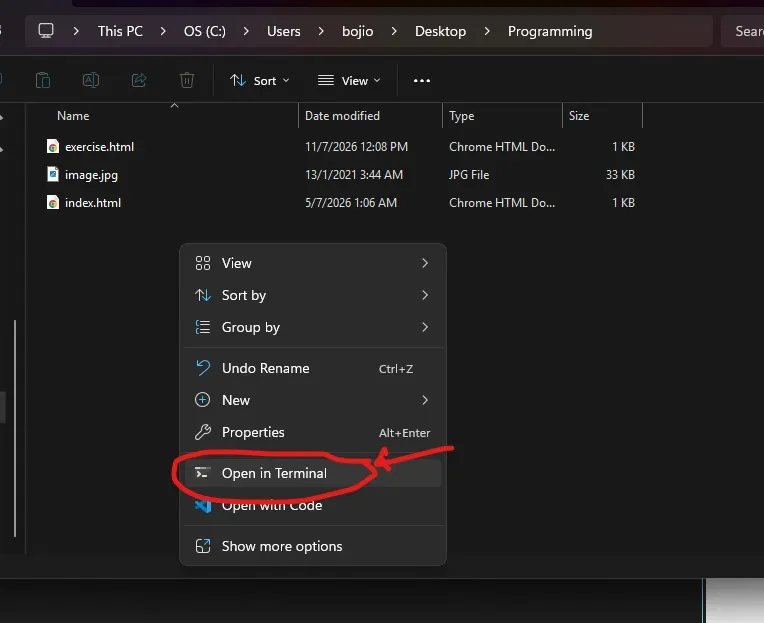
Go to the folder where you saved your project.
Right-click inside the folder and select Open in Terminal.
Create Your First Git Repository
Paste these commands:
git init -b main
git add .
git commit -m "First Commit"
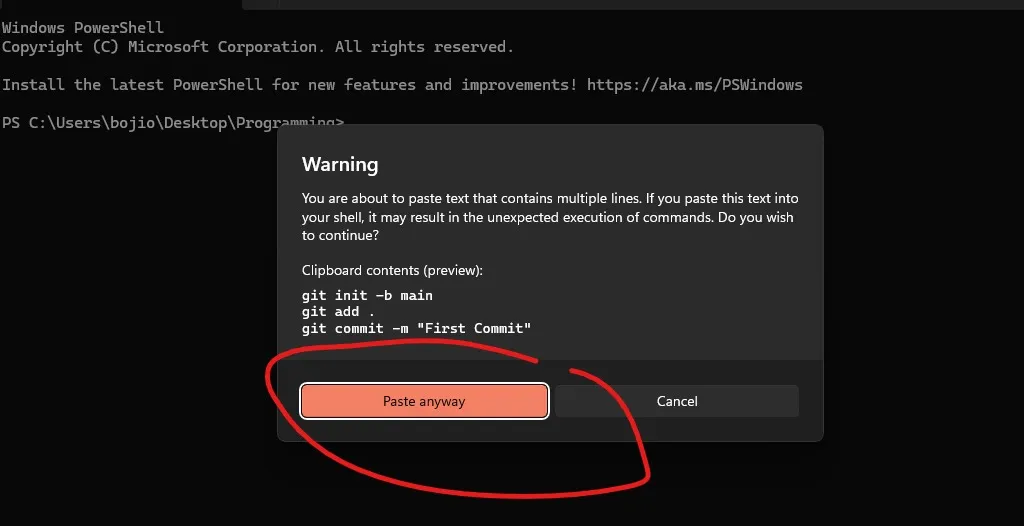
If Windows asks you to confirm, click Paste Anyway and press Enter.
What Do These Commands Do?
git init -b main
Creates a new Git repository in your folder.
In simple terms, you are telling Git:
“Start tracking this project.”
The -b main part creates the first branch called main.
git add .
Prepares all your files to be saved.
The dot (.) means:
“Include everything inside this folder.”
git commit -m "First Commit"
Creates a saved checkpoint of your project.
The message inside the quotes is a short description of what you saved.
You will make many commits as your project grows.
Understanding the Git Workflow
Git works like this:
Your Files
     ↓
git add .
     ↓
Staging Area
     ↓
git commit
     ↓
Local Git Repository
     ↓
git push
     ↓
GitHub
Think of it like this:
git add= preparing files to savegit commit= pressing Save Gamegit push= uploading your save file to the internet
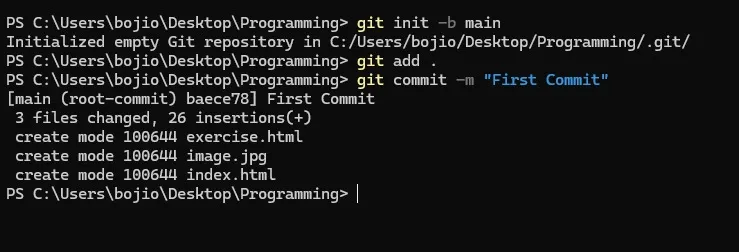
If you see a message similar to this, it means your files have been successfully committed to Git.
At this point, your project is only saved on your computer.
The next step is to upload it to GitHub.
Create Your GitHub Repository
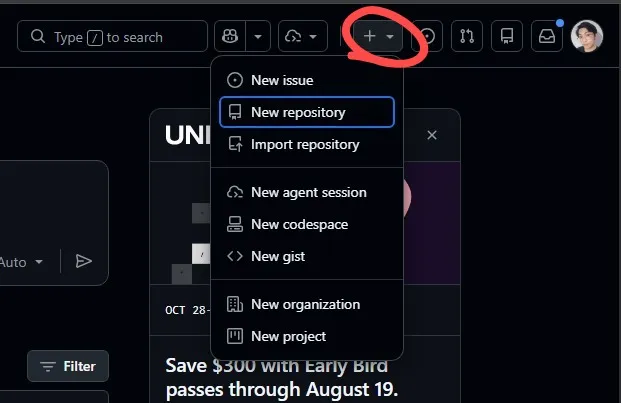
Go to https://github.com and log in.
Click the + button in the top-right corner and select New Repository.
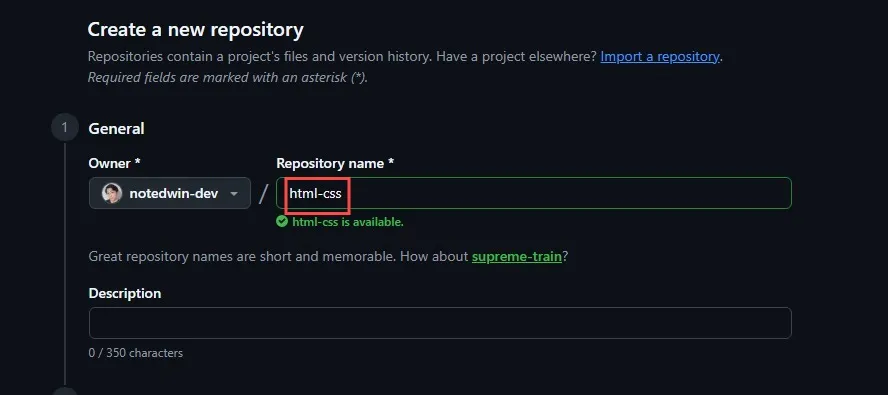
Give your repository an easy-to-remember name, such as:
html-cssportfoliomy-first-website

Scroll down and click Create repository.
Connect Your Project to GitHub
After creating the repository, GitHub will show you a page with instructions.
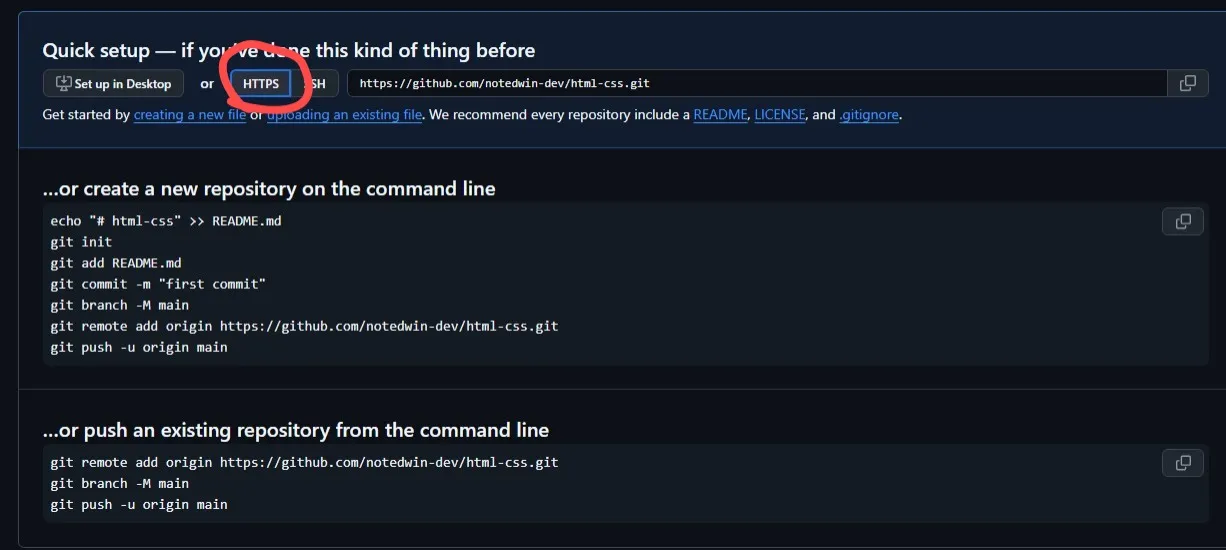
Make sure HTTPS is selected.
The link should start with:
https://
and not:
git@github.com
Upload Your Project to GitHub
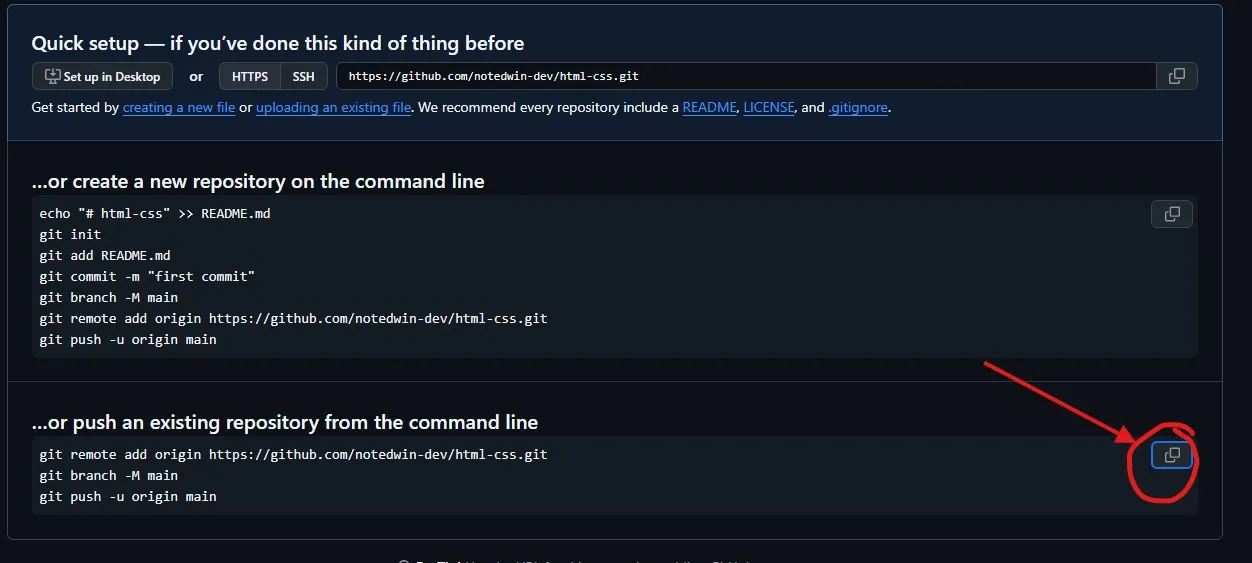
Go back to your terminal and paste the copied command:
git remote add origin YOUR_REPOSITORY_LINK
git branch -b main
git push -u origin main
What Do These Commands Do?
git remote add origin
Connects your project folder on your computer to your GitHub repository.
Think of it like telling Git:
“This is where I want to upload my code.”
git push -u origin main
Uploads your commits from your computer to GitHub.
Think of it like:
“Take my saved project and put it online.”
You may be asked to sign in to GitHub in your browser.
After signing in, the upload will continue automatically.
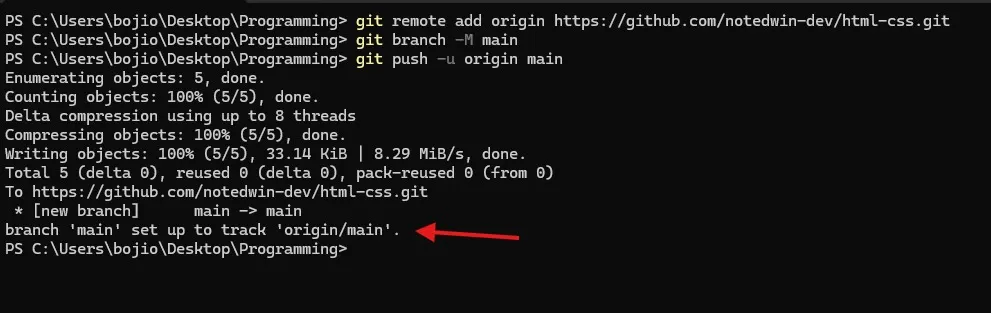
If you see something similar to this, congratulations!
Your project has been successfully uploaded to GitHub.
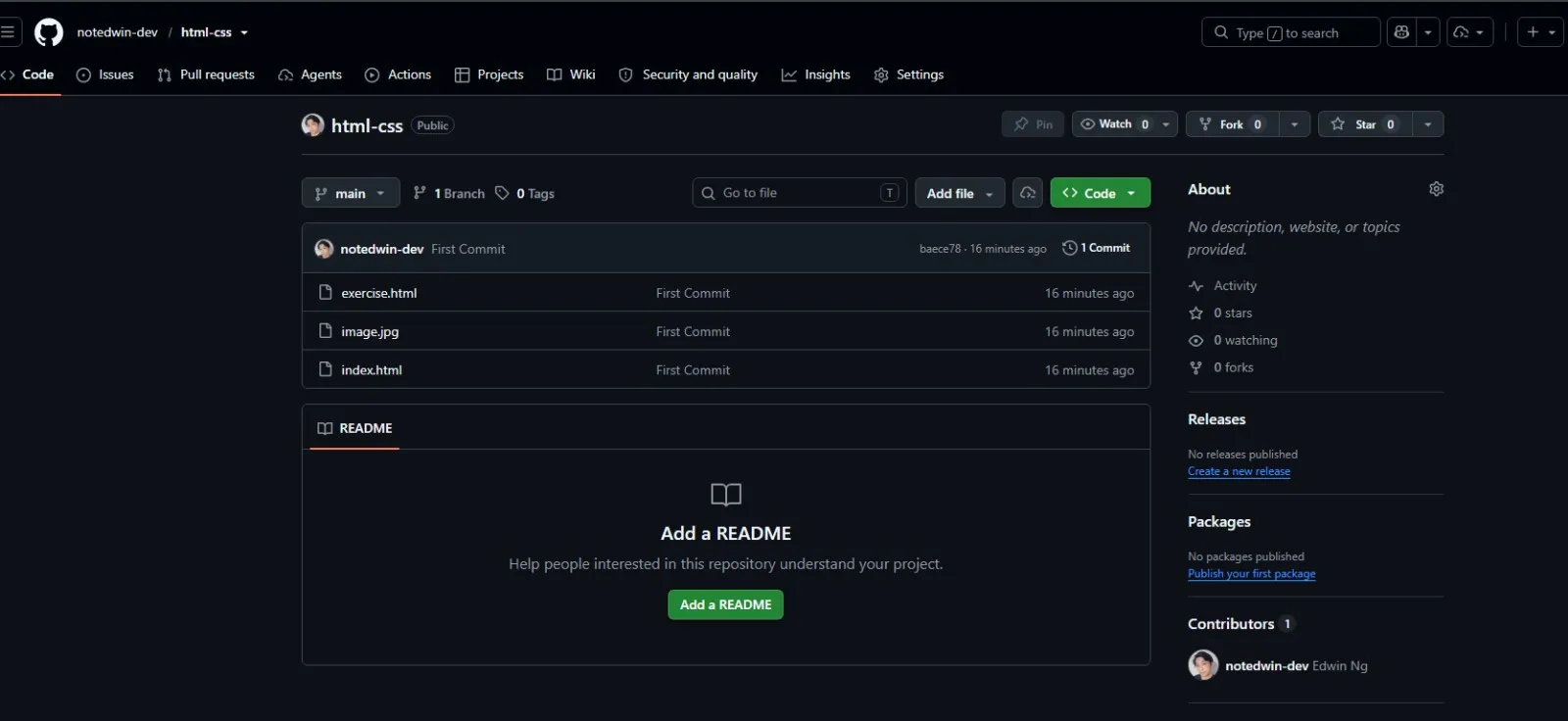
Go back to GitHub and refresh the page.
You should now see all of your files inside the repository.
Your code is now:
✅ Saved on your computer
✅ Backed up online on GitHub
✅ Ready to be shared with other people